If you have recently purchased an MTN ODU Router in Lagos, setting it up correctly is the first step toward enjoying fast, stable, and reliable internet. Fortunately, the installation process is straightforward when you follow the right steps. Whether you need dependable internet for your home, office, online classes, or business operations, this guide will walk you through everything you need to know. Moreover, proper installation ensures you get the best speed and coverage from your router.
What Is an MTN ODU Router?
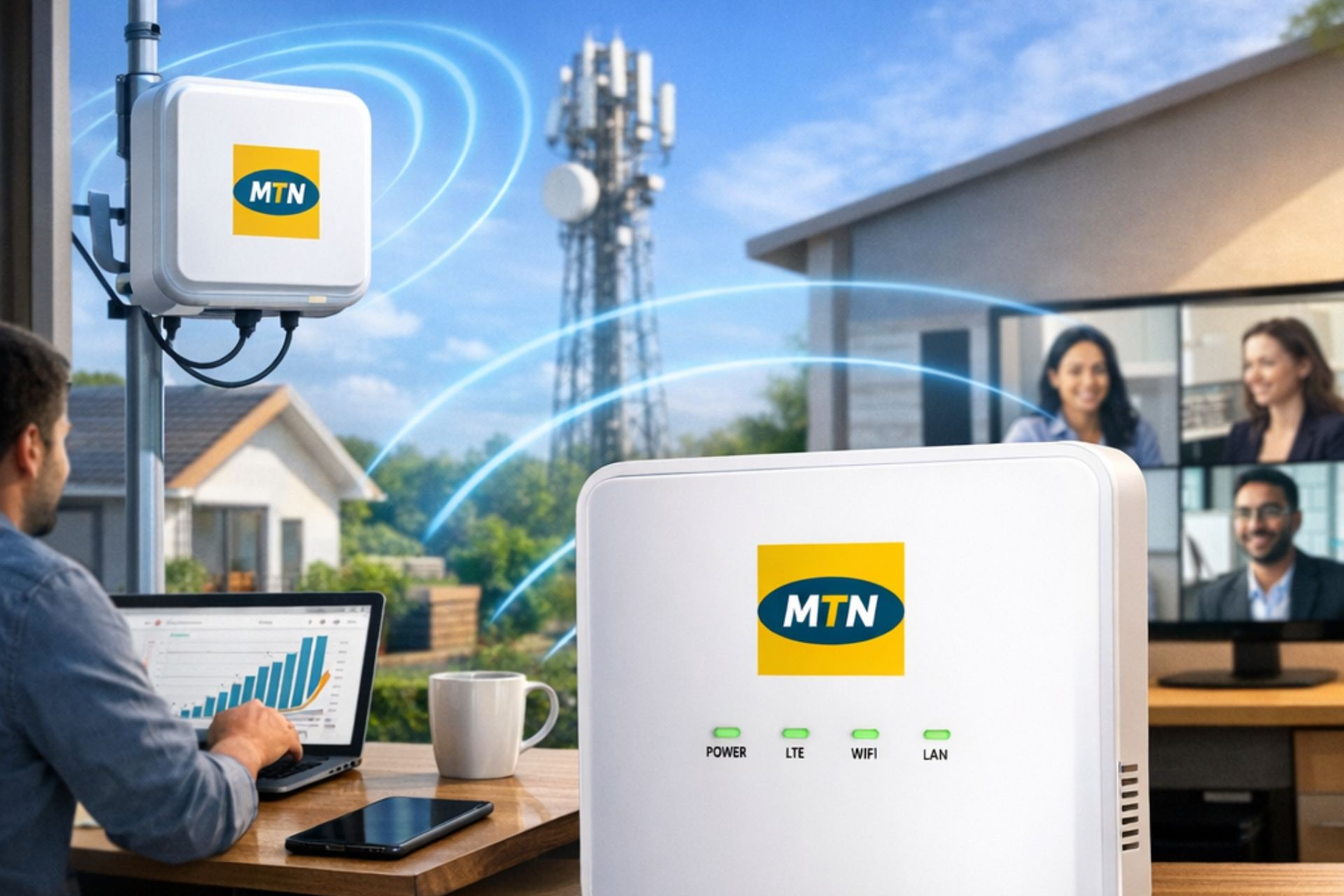
An MTN ODU Router is a high-speed wireless broadband device that uses an Outdoor Unit (ODU) to receive a stronger network signal from nearby MTN towers. Unlike standard indoor routers, the outdoor antenna captures a more stable connection, while the Indoor Unit (IDU) distributes Wi-Fi throughout your home or office.
As a result, users enjoy faster internet speeds, reduced signal interruptions, and improved network performance even in areas with weaker indoor coverage.
Why Proper Installation Matters
Installing your MTN ODU Router correctly offers several advantages. For instance, it helps maximize internet speed, improve signal strength, and reduce connection drops.
Some of the key benefits include:
Better Wi-Fi coverage across your home or office
More stable internet connection
Improved download and upload speeds
Reduced network interruptions
Enhanced performance for multiple connected devices
Therefore, taking a few extra minutes during installation can significantly improve your internet experience.
Items You’ll Need Before Installation
Before you begin, ensure you have the following:
MTN Outdoor Unit (ODU)
Indoor Wi-Fi Router (IDU)
Ethernet cable
Power adapter
Mounting brackets
Screws and wall plugs
SIM card (if required)
Smartphone or laptop for setup
Having these items ready will make the installation process much smoother.
Step-by-Step MTN ODU Installation Guide
Step 1: Choose the Best Outdoor Location
First, select a location with a clear view of the sky and minimal obstructions. Ideally, mount the Outdoor Unit on a rooftop, balcony, or high exterior wall.
Avoid placing the antenna behind thick concrete walls, large trees, or metal objects because they may weaken the signal.
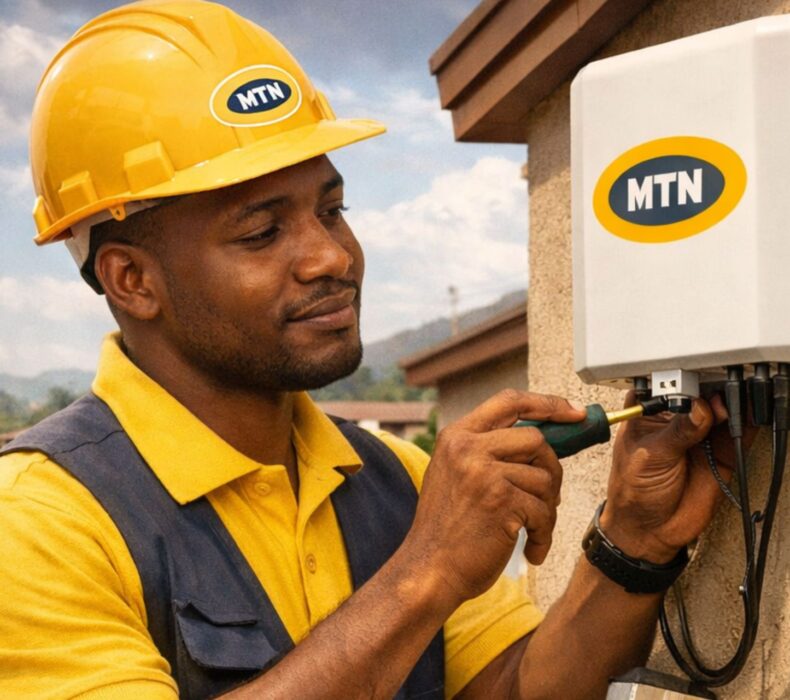
Step 2: Secure the Outdoor Unit
Next, use the supplied mounting brackets and screws to firmly attach the Outdoor Unit to the selected surface.
Ensure it is securely fastened to withstand wind and harsh weather conditions.
Step 3: Connect the Ethernet Cable
After mounting the Outdoor Unit, connect the Ethernet cable to the designated port.
Then, carefully run the cable indoors while protecting it from sharp bends or excessive exposure to sunlight.
Step 4: Connect the Indoor Router
Now, connect the Ethernet cable to the WAN or Internet port on the Indoor Unit.
Afterward, plug the power adapter into the router and switch it on.
Within a few minutes, the status lights should indicate that the router is starting up.
Step 5: Configure Your Wi-Fi Network
Once the router powers on, connect your smartphone or laptop to the default Wi-Fi network.
Then, open a web browser and enter the router’s setup address.
Follow the on-screen instructions to:
Create a new Wi-Fi name (SSID)
Set a strong password
Save your settings
Finally, reconnect your devices using the new Wi-Fi credentials.
How to Position Your MTN ODU Router for Better Performance
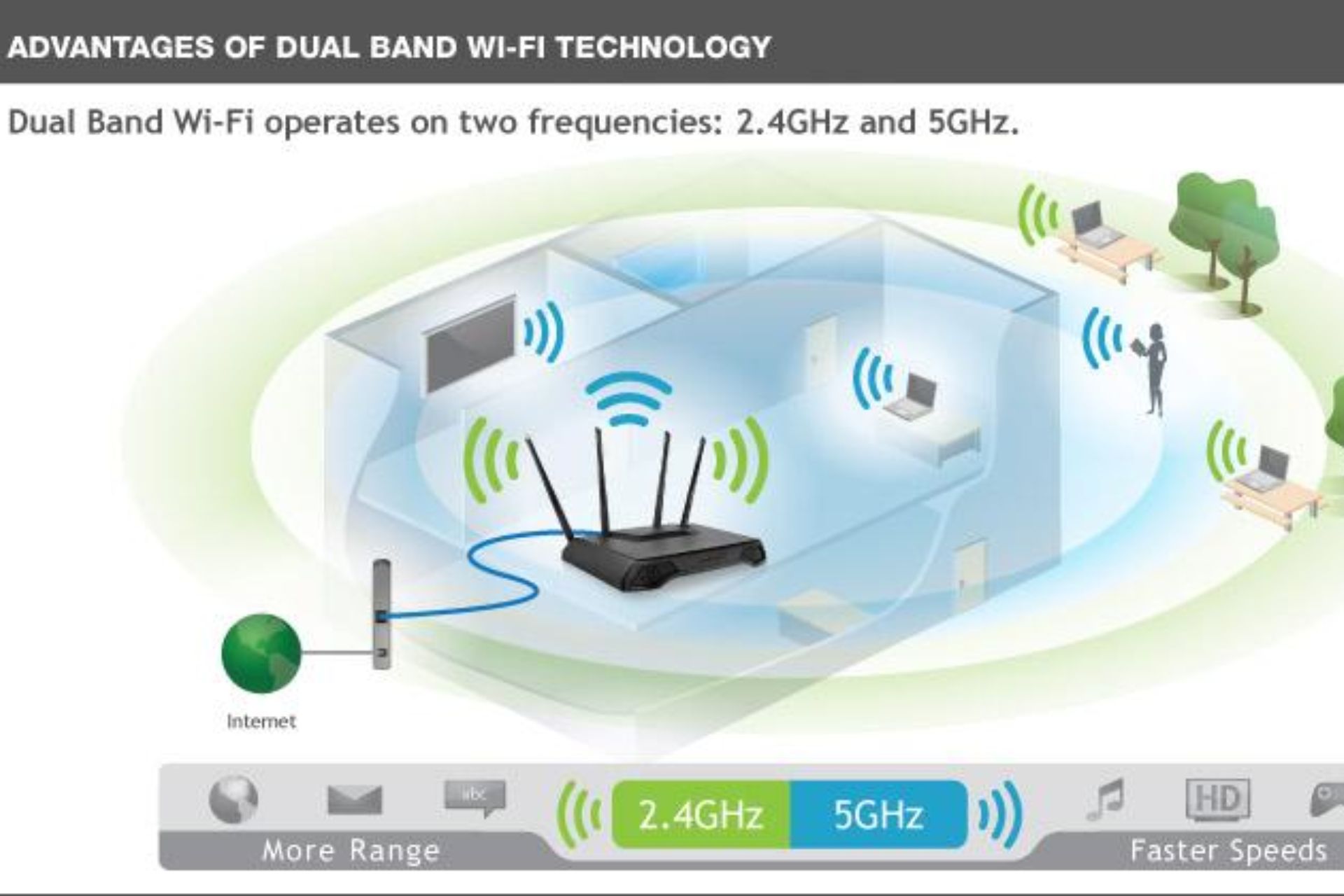
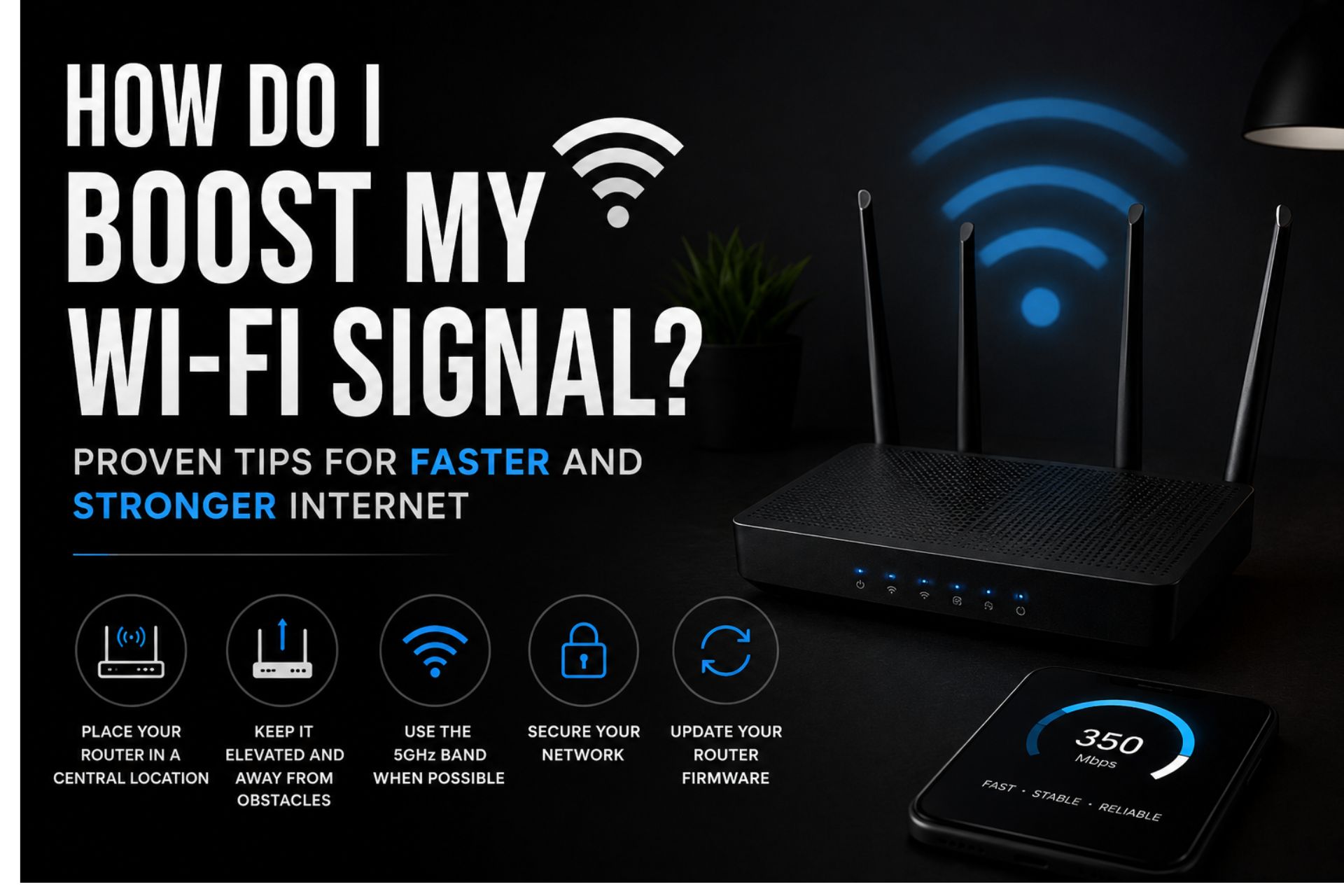
Place the Indoor Router Centrally
Position the indoor router in the middle of your home or office whenever possible. This helps distribute Wi-Fi signals evenly.
Avoid Signal Blockers
Keep the router away from:
Microwaves
Refrigerators
Thick concrete walls
Large mirrors
Metal cabinets
These objects can interfere with wireless signals.
Keep It Elevated
Additionally, placing the router on a shelf or table instead of the floor helps improve signal coverage.
Common Installation Mistakes to Avoid
Many users unknowingly reduce internet performance by making simple mistakes.
Avoid the following:
Mounting the outdoor antenna too low
Installing near large trees
Using damaged Ethernet cables
Blocking router ventilation
Leaving default Wi-Fi passwords unchanged
Instead, always follow the manufacturer’s recommendations for the best results.
Troubleshooting Installation Issues
No Internet Connection
If your internet is not working:
Check all cable connections.
Restart both the Outdoor Unit and Indoor Router.
Confirm that your data plan is active.
Ensure the Outdoor Unit has a clear signal.
Weak Wi-Fi Signal
If Wi-Fi coverage is poor:
Move the indoor router to a central location.
Reduce interference from electronic devices.
Restart the router.
Limit unnecessary connected devices.
Slow Internet Speeds
If your connection seems slow:
Run an internet speed test.
Check for software updates.
Disconnect unused devices.
Contact customer support if the issue persists.
Tips for Maintaining Your MTN ODU Router
Proper maintenance helps your router perform efficiently for years.
Because it provides reliable broadband connectivity, it supports streaming, video conferencing, online learning, cloud applications, and everyday browsing with ease.
Conclusion
Installing your MTN ODU Router properly is essential for enjoying reliable, high-speed internet. By following the steps outlined in this guide, you can maximize signal strength, improve Wi-Fi coverage, and ensure a stable connection for your home or business. Additionally, regular maintenance and proper router placement will help you get the best performance over time. If you are looking for dependable wireless broadband in Nigeria, the MTN ODU Router is an excellent solution for fast and consistent internet access.
Frequently Asked Questions
How long does it take to install an MTN ODU Router?
Most installations take between 30 and 60 minutes, depending on the mounting location and cable routing.
Can I install the MTN ODU Router myself?
Yes. If you carefully follow the installation instructions, you can complete the setup yourself. However, professional installation is recommended for rooftop mounting.
Does the outdoor antenna need direct sunlight?
No. It simply requires a clear line of sight with minimal obstructions for the best signal reception.
Can multiple devices connect to the MTN ODU Router?
Yes. The router supports multiple Wi-Fi devices simultaneously, making it suitable for homes and offices.
How can I improve my MTN ODU Router speed?
Place the router centrally, avoid electronic interference, keep firmware updated, and ensure the outdoor antenna has the strongest possible signal.











 Get it on
  Download on the